A to-do list can tell you what needs to get done, but it does not always show you where that work will fit between meetings, messages, and other commitments.
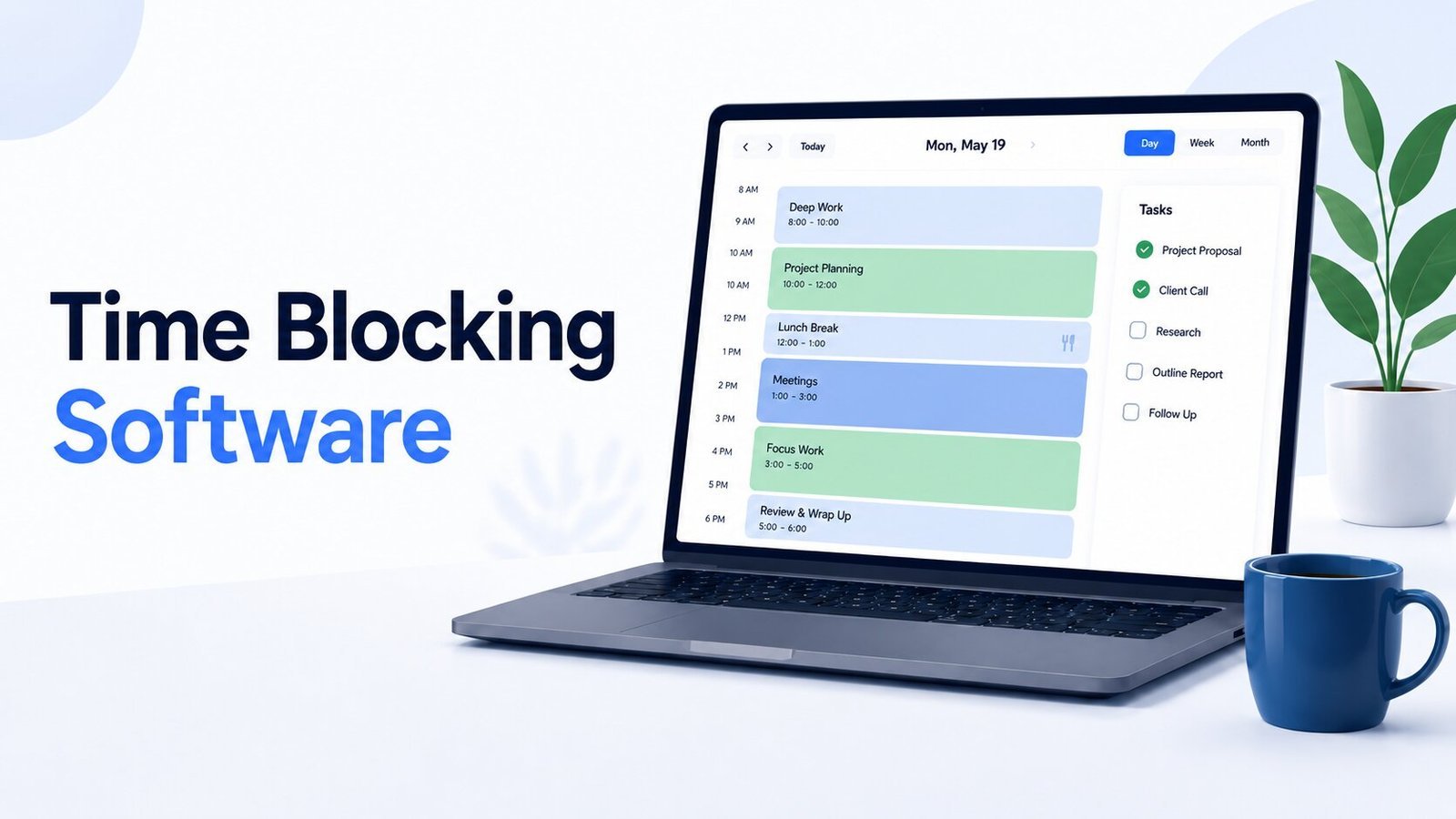
Time blocking apps help turn tasks into actual time on the calendar. Some keep planning simple, while others combine tasks and calendars, guide your day, or automatically rearrange work when your schedule changes.
You do not necessarily need the most advanced option. A simple calendar may be enough if you mainly want to protect focus time, while a dedicated planner can help more when tasks come from several places or your schedule changes often.
Best Time Blocking Apps: Quick Overview
| App | Best for | Scheduling style |
|---|---|---|
| Google Calendar | Simple, free time blocking | Manual |
| Outlook Calendar | Microsoft 365 workdays | Manual |
| TickTick | Tasks and calendar planning on a budget | Manual |
| Todoist | Task-first time blocking | Manual |
| Structured | Visual daily planning | Manual |
| Sunsama | Guided daily planning | Guided |
| Morgen | Multiple calendars and task sources | Manual + AI-assisted |
| Akiflow | Bringing scattered work into one daily plan | Manual + AI-assisted |
| Reclaim | Protecting focus time around meetings | Automatic |
| Motion | Automatically scheduling tasks and projects | Automatic |
How We Chose These Apps
We compared these tools around the parts of time blocking that matter most in everyday work, including calendar planning, task scheduling, rescheduling, integrations, platform support, automation, free-plan usefulness, and paid features.
Product details were checked against current official information, including features, platform availability, and plan details.
How to Choose Time Blocking Software
Start with the part of planning you want the software to help with. Two people can use the same time-blocking method and still need very different tools.
Do you want to place the blocks yourself?
Manual planning gives you the most control. You decide when a task belongs on the calendar, how long to give it, and what should move when the day changes.
Google Calendar and Outlook Calendar are often enough when you mainly want to protect time yourself. TickTick, Todoist, Structured, Sunsama, Morgen, and Akiflow add different levels of task planning around the calendar.
If you would rather have the software find suitable time for you, Reclaim and Motion move much further into automatic scheduling.
Where do your tasks come from?
If most of your work already lives in one task manager, keeping that system may be easier than rebuilding everything somewhere new.
Todoist and TickTick make sense when tasks come first. Morgen can bring tasks from tools such as Todoist, Notion, ClickUp, Google Tasks, and Microsoft To Do into the same planning workflow. Akiflow takes a similar consolidation approach, with a Universal Inbox designed to collect work from connected tools before you place it into your schedule.
If you are still choosing the task system itself, the differences between the best to-do list apps may matter more than advanced scheduling features.
How often does your schedule change?
Manual time blocking works well when your calendar is reasonably predictable. It takes more effort when meetings move, deadlines shift, and new work appears throughout the day.
That is where automatic scheduling becomes useful. Motion can place tasks around existing commitments and reshuffle them when meetings or priorities change. Reclaim focuses more on automatically finding and protecting flexible time for work, routines, and focus.
How much planning do you want to maintain yourself?
More automation is not automatically better.
You may prefer choosing your own blocks because you know when you concentrate best or which tasks need breathing room around them. On a more unpredictable schedule, handing some of that rearranging to the software may be a relief.
Think about which part of planning currently takes too much effort. That usually tells you more than a long feature comparison.
Google Calendar
Best for simple, free time blocking without adopting a new planning system.
Google Calendar remains one of the easiest ways to start blocking time. You can reserve space for focused work, admin tasks, meetings, breaks, and recurring routines, then move those blocks when the day changes.
Google Tasks now fits more naturally into that workflow too. A task can include a start date and time along with the amount of time you plan to spend on it, making basic task-based time blocking much more practical inside Calendar.
Pricing: Free with a personal Google account. Business use may be provided through Google Workspace.
What stands out
- Easy manual time blocking with a familiar calendar
- Recurring events for regular routines and focus blocks
- Google Tasks can appear directly on the calendar
- Fits naturally with Gmail and other Google Workspace tools
Worth knowing
Google Calendar still leaves most of the planning to you. It does not automatically rebuild your workday when priorities change, and its task organization remains much lighter than a dedicated daily planner.
If your main need is simply to see where your time is going, that may be enough.
Outlook Calendar
Best for blocking work time inside a Microsoft 365 or Outlook-based workday.
If meetings, email, and workplace scheduling already happen in Outlook, using the same calendar for focus blocks keeps your planning close to the rest of your work.
You can create recurring appointments for project work, choose how those blocks appear to other people, and use categories to make different types of work easier to spot. Appointments can also show you as busy, which is useful when coworkers check your availability before scheduling meetings.
Pricing: Outlook offers a free email and calendar plan. Microsoft 365 subscriptions add additional storage, desktop apps, and other features.
What stands out
- Fits naturally into Microsoft-based workplaces
- Calendar blocks sit alongside meetings and appointments
- Categories help separate different kinds of work
- Useful when colleagues already rely on your Outlook availability
Worth knowing
Outlook is primarily a calendar and communication tool, not a dedicated daily planner. It is a solid choice for protecting time manually, but it does not offer the same task-to-calendar workflow or automatic rearranging found in specialized planning apps.
TickTick
Best for combining task management and calendar planning without moving to a high-priced daily planner.
TickTick works well if your planning starts with tasks but you also want to see when those tasks will happen. It brings lists, recurring tasks, priorities, calendar views, habits, and focus tools into the same system.
The Premium plan is where TickTick becomes much more useful for time blocking. It adds fuller calendar views and task duration, so you can plan work against actual available time instead of relying only on due dates.
Pricing: Free plan available. TickTick Premium currently costs $49.99 per year.
What stands out
- Tasks and calendar planning live in the same app
- Task duration supports more realistic scheduling
- Built-in Pomodoro timer and habit tracking
- Lower annual cost than many dedicated daily planners
Worth knowing
The free version works well as a task manager, but the richer calendar features that make TickTick particularly useful for time blocking require Premium.
If TickTick already holds your tasks, upgrading can be simpler than introducing another planning app.
Todoist
Best for task-first planning when you want to turn an organized task list into scheduled work.
Todoist is useful when the task list comes first. Projects, priorities, recurring tasks, filters, Today, and Upcoming help you decide what matters before you start assigning work to time.
Pro users can use Todoist’s calendar layout and task durations to drag tasks into time slots and see how much of the day the work will actually take.
Pricing: The Beginner plan is free. Pro currently costs $5 per user per month when billed yearly, or $60 per year.
What stands out
- Strong task organization before scheduling begins
- Calendar layout supports visual time blocking
- Task duration makes workload easier to judge
- Useful if Todoist already holds most of your work
Worth knowing
Todoist remains more task-manager-first than calendar-first. Its strongest time-blocking features require Pro, and it does not try to become a multi-calendar planning hub in the way Morgen does.
Structured
Best for seeing your day as one simple visual timeline.
Structured takes a more visual approach than most of the tools here. Tasks and events appear along a daily timeline, helping you see the shape of the day without moving constantly between a task list and a calendar.
The app is available across iOS, Mac, Android, and the web, although feature availability still varies by platform.
Pricing: The core app can be used free. U.S. Structured Pro pricing is currently $6.99 monthly, $29.99 yearly, or $99.99 for lifetime access.
What stands out
- Clear daily timeline makes the schedule easy to scan
- Unscheduled work can wait until you decide where it belongs
- Works across mobile, web, and Mac
- Pro adds additional planning and customization features
Worth knowing
Structured is strongest as a visual day planner rather than a complex project or multi-calendar system.
Some capabilities are also still different across Apple, Android, and web versions, so check the features you care about on the platform you plan to use most.
Sunsama
Best for turning time blocking into a deliberate daily planning routine.
Sunsama is built around deciding what can realistically fit into your day before you start filling the calendar.
You can estimate how long tasks will take and place them directly onto your calendar. Sunsama works with Google, Outlook, and iCloud calendars, and it can keep working sessions either on those external calendars or within its own private calendar. It can also reschedule timeboxed tasks when conflicts appear.
That makes Sunsama especially useful when your problem is not forgetting tasks, but repeatedly committing to more work than the day can hold.
Pricing: Sunsama currently costs $22 per month or $204 per year. A 14-day trial is available.
What stands out
- Guided daily planning encourages a more realistic workload
- Tasks can be placed directly into calendar time
- Connects with Google, Outlook, and iCloud calendars
- Can help reschedule timeboxed work when conflicts appear
Worth knowing
Sunsama costs considerably more than a basic calendar or task app, and there is no permanent free plan.
The price makes more sense when you value the daily planning process itself. If you only need to reserve a few focus blocks, you can do that with much simpler software.
Morgen
Best for bringing several calendars and task sources into one planning view.
Morgen is particularly useful when your schedule is split across different calendars or your tasks live in several other tools.
It can bring tasks from services including Todoist, Notion, Linear, ClickUp, Google Tasks, Microsoft To Do, and Apple Reminders into one planning workflow. You can drag tasks onto the calendar yourself or use the AI Planner to suggest a schedule based on your available time and task information.
You remain in control of the proposed plan, which makes Morgen a useful middle ground between fully manual time blocking and software that constantly rearranges the calendar for you.
Pricing: Morgen currently costs $30 per month, or $15 per month when billed yearly. A 14-day trial is available.
What stands out
- Brings multiple calendars into one planning view
- Pulls tasks from several popular task and project tools
- Supports both manual and AI-assisted time blocking
- Available on Windows, macOS, Linux, mobile, and the web
Worth knowing
Morgen offers much more than a basic calendar, which also means you are paying for integrations and planning features you may not need.
It fits best when your real problem is work being scattered across calendars and task systems.
Akiflow
Best for busy workflows where tasks arrive from several different apps.
Akiflow starts with a different problem: work often arrives through email, chat, task apps, and other tools before it ever reaches your calendar.
Its Universal Inbox is designed to bring that work into one place, where you can organize priorities and turn selected tasks into scheduled blocks. Akiflow also connects calendar and task management in the same workspace and offers AI-assisted planning features.
Pricing: Akiflow Pro currently costs $34 per month or $19 per month when billed yearly. A 7-day free trial is available.
What stands out
- Universal Inbox brings scattered work into one place
- Strong calendar-based time blocking
- Quick capture and keyboard shortcuts support faster planning
- AI features can assist with scheduling and prioritization
Worth knowing
Akiflow makes the most sense when task fragmentation is genuinely part of the problem. If everything you need to do already lives in one simple list, much of its value may go unused.
It also costs considerably more than simpler options such as TickTick or Structured.
Reclaim
Best for protecting focus time when meetings keep taking over the calendar.
Reclaim is less about manually building the perfect schedule and more about defending flexible time around the commitments already on your calendar.
Its scheduling tools can protect Focus Time, place Tasks around deadlines, and create recurring Habits within flexible windows. Reclaim then adjusts those blocks around the rest of your schedule.
That can be particularly helpful when you know you need regular heads-down time but cannot reserve the same fixed hours every week.
Pricing: Reclaim offers a free Lite plan. Starter currently costs $10 per seat per month on annual billing.
What stands out
- Automatically protects focus time around existing calendar events
- Tasks can be scheduled around deadlines
- Habits reserve flexible time for recurring work
- Free plan lets you try the scheduling approach before paying
Worth knowing
Reclaim is strongest when the calendar itself is the problem. If you want detailed project management or a rich daily-planning workspace, another tool may fit better.
And if meetings are consuming most of the time you are trying to protect, reducing meeting overload can matter just as much as finding better scheduling software.
Motion
Best for letting software handle most of the daily scheduling.
Motion goes further into automation than the other tools on this list. You give tasks details such as duration, deadline, priority, and availability, and Motion places them into suitable calendar time.
When meetings or other commitments create conflicts, Motion can automatically reshuffle tasks around the updated schedule instead of leaving you to move each block yourself.
Motion also combines this scheduling with broader task, project, calendar, and meeting-management features.
Pricing: Motion currently lists Pro AI at $19 per seat per month on annual billing.
What stands out
- Automatically schedules tasks into available time
- Replans work when the calendar changes
- Combines task, project, calendar, and meeting management
- Useful when repeated manual rescheduling takes too much time
Worth knowing
Motion gives up some of the hands-on control that makes manual time blocking appealing. If you prefer choosing exactly when each piece of work happens, an automatic planner may be more intervention than you want.
Its broader feature set also means it makes the most sense when you genuinely want scheduling automation, not simply a more organized calendar.
Choosing the Right Time Blocking App
The best tool is the one that matches how much planning you want to handle yourself.
A simple calendar may be enough if you prefer manual control. Guided planners such as Sunsama, Morgen, or Akiflow can help bring more of your day into one place, while Reclaim and Motion are better suited to schedules that need more automatic adjustment.
Choose the level of help that solves a real planning problem without adding more complexity than you need.
Frequently Asked Questions
What is the best time blocking app?
Google Calendar is a strong choice for simple manual time blocking. TickTick works well for tasks plus calendar planning, while Motion is better if you want automatic scheduling.
What is the best free time blocking app?
Google Calendar is one of the best free options for manual time blocking. Reclaim also offers a free plan if you want some automatic scheduling around focus time and recurring work.
Can you use Google Calendar for time blocking?
Yes. You can create calendar blocks for focused work, admin tasks, meetings, routines, and breaks, then move them as your schedule changes.
What is the best time blocking app for Windows?
Outlook Calendar is a natural fit for Microsoft 365 users. TickTick, Todoist, Morgen, Akiflow, Motion, and Structured also work well on Windows through desktop or web apps.
Is a time blocking app better than a to-do list app?
They solve different problems. A to-do list app helps you organize what needs to be done, while a time blocking app helps you decide when you will do it.