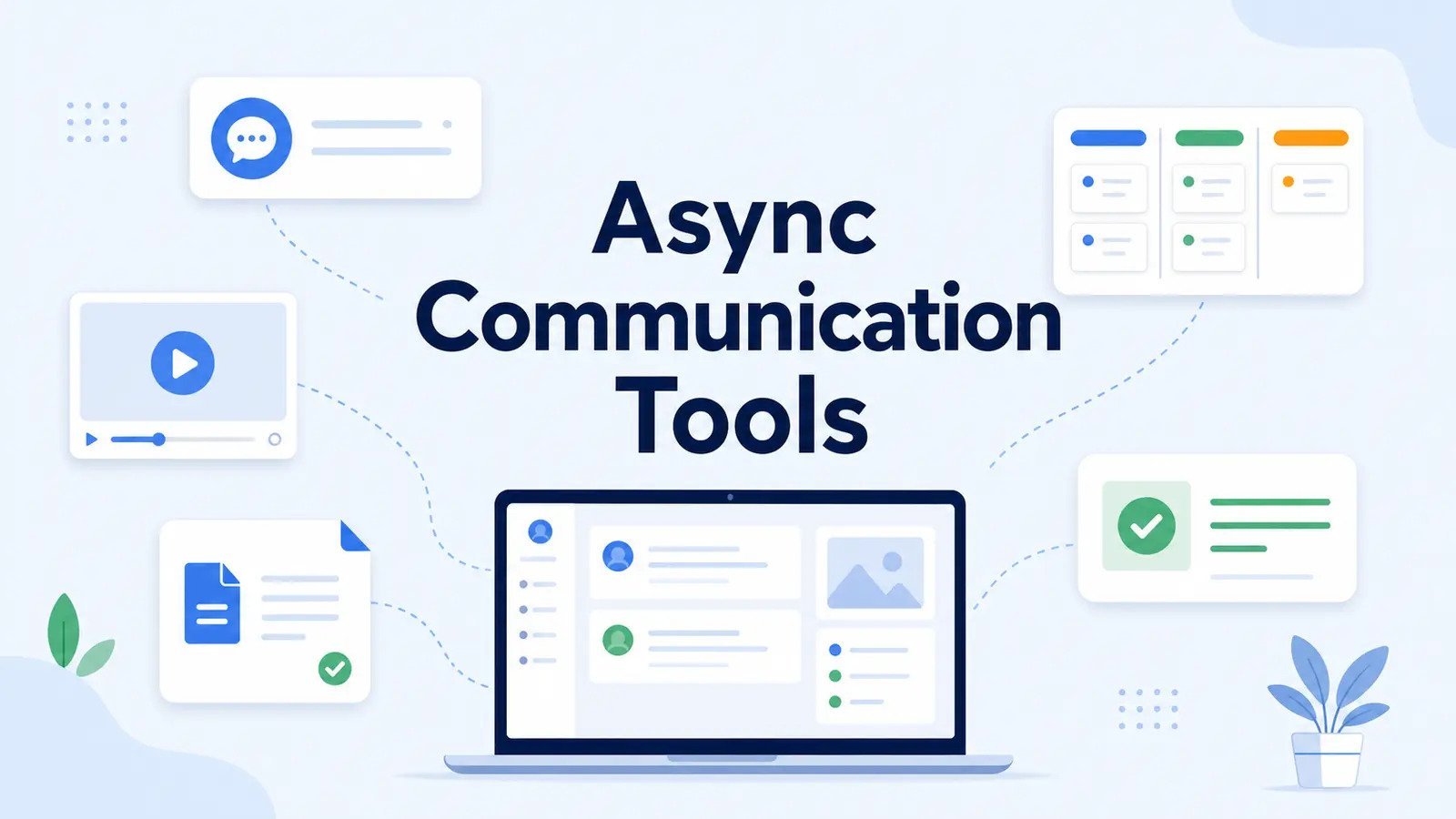
Remote work can turn one update into three places to check: a chat thread, a task comment, and a document note. The problem is not always that your team lacks communication tools. It is often that different kinds of communication do not have a clear home.
A quick update may belong in team messaging. A project decision needs somewhere people can find it later. A screen walkthrough can replace a meeting, while detailed feedback often works better directly on the document, board, or file being reviewed.
The best asynchronous communication tools help separate those jobs without requiring everyone to be online at the same time. You probably need only a few of them, not every option on this list.
Best Async Communication Tools: Quick Overview
| Tool | Best for | Main async role |
|---|---|---|
| Slack | Flexible team messaging | Channels, threads, and everyday updates |
| Twist | Calm, async-first messaging | Topic-based threaded discussions |
| Microsoft Teams | Microsoft 365 workplaces | Channels, files, and team conversations |
| Loom | Video updates and walkthroughs | Recorded visual explanations |
| Asana | Project communication | Tasks, ownership, and status updates |
| Notion | Team knowledge and decisions | Docs, wikis, and written context |
| Google Workspace | Document collaboration | Comments, suggestions, and shared files |
| Miro | Visual collaboration | Whiteboards, diagrams, and idea review |
| Frame.io | Creative feedback | Time-specific media review and approvals |
How We Chose These Tools
We compared tools that solve different parts of asynchronous work, including team messaging, project updates, documentation, recorded explanations, shared-file feedback, and visual collaboration.
Product details were checked against current official information, including features, plan availability, and pricing.
How to Choose an Async Communication Tool
Start with the communication that keeps causing trouble. Adding another platform before you know what it should replace can leave your team with one more inbox to watch.
If everyday updates disappear too quickly
Start with messaging.
Slack, Twist, and Microsoft Teams all give conversations a shared home, but they encourage different working styles. Slack is flexible and familiar. Twist puts more emphasis on slower, topic-based threads. Teams fits naturally when Microsoft 365 already holds much of your work.
If tasks are getting lost inside conversations
You may need work tracking rather than another messaging app.
Asana gives a request an owner, deadline, project context, and place for follow-up. That separates talking about the work from tracking whether the work actually gets done.
If people keep asking where the final answer lives
Look at documentation.
Notion works well for team knowledge, processes, and decisions that need to be found again. Google Workspace is a natural fit when the information already lives inside Docs, Sheets, Slides, and Drive.
A discussion thread can be useful without being the right permanent home for a policy, process, or final decision.
If text is taking too long to explain the work
Visual communication may be more useful.
Loom works well for screen walkthroughs and demonstrations. Miro helps when people need to map, sketch, organize, or react to ideas visually. Frame.io is much more specialized, but useful when feedback needs to point to an exact moment in creative work.
If you are not sure whether a conversation should be async in the first place, decide between asynchronous and synchronous communication before choosing the software.
Slack
Best for teams that want flexible messaging without moving to a fully async-first platform.
Slack can support asynchronous work well when channels and threads give updates enough structure to remain useful after the moment they were posted. A teammate can leave context in the right channel, keep follow-up discussion inside a thread, and return later without restarting the conversation from scratch.
Slack currently supports threaded conversations, searchable history, channels, integrations, and other features that can help teams organize ongoing communication. Its free plan provides access to the most recent 90 days of message and file history, while paid plans extend that history and add broader collaboration features.
Pricing: Free plan available; paid plans add longer history and additional collaboration features.
What stands out
- Channels organize conversations around projects, teams, or topics
- Threads keep follow-up discussion attached to the original message
- Search makes past conversations easier to revisit
- Large integration ecosystem connects Slack with other work tools
Worth knowing
Slack does not become asynchronous simply because your team uses channels. If every message is treated as urgent, it can still create an always-on workday.
Clear Slack etiquette, sensible notification habits, and realistic response expectations matter just as much as the software.
Twist
Best for teams that want calmer, topic-focused messaging.
Twist takes a different approach from fast-moving workplace chat. Conversations are organized as titled threads inside broader channels, giving each discussion a clear topic and making it easier to return to later. Twist describes channels as spaces that organize related threads around areas such as projects, teams, or topics.
That structure suits teams that prefer giving people time to read and respond instead of keeping a chat window active throughout the day.
Pricing: Free plan available. Twist Unlimited currently costs $6 per user per month on yearly billing.
What stands out
- Thread-first conversations keep topics separated
- Channels provide broader organization
- Public and private channels support different visibility needs
- Discussion history is easier to revisit than a single fast-moving chat stream
Worth knowing
Twist has a smaller ecosystem and will be less familiar to many teams than Slack or Microsoft Teams.
That tradeoff can be worthwhile if your team is deliberately trying to move away from instant-message habits rather than simply replacing one chat app with another.
Microsoft Teams
Best for organizations already working inside Microsoft 365.
Microsoft Teams brings communication and shared files into the same environment as many Microsoft workplace tools. Channel conversations can keep project discussions visible, while files shared in channels remain connected to OneDrive and SharePoint. Microsoft confirms that each channel has shared file access and an associated SharePoint library.
For a company already using Outlook, Word, Excel, OneDrive, and SharePoint, that connection can be more useful than introducing a separate async messaging platform.
Pricing: A free Teams option is available. Microsoft Teams Essentials currently costs $4 per user per month, paid yearly in the U.S.
What stands out
- Channel posts keep team discussions visible
- Shared files stay connected to Microsoft 365 storage
- Fits naturally into Microsoft-based workplaces
- Useful for organizations that need stronger administration and access controls
Worth knowing
Teams covers a lot of ground, which can make it heavier than necessary if you mainly want simple async messaging.
It also supports meetings, calls, and immediate chat, so your team’s working habits still determine whether it becomes an async-friendly workspace or another place where quick replies are expected.
Loom
Best for explaining something visually without scheduling a meeting.
Loom is useful when showing something would be clearer than describing it.
You can record your screen, camera, or both, then share the video for someone to watch later. Loom’s current plans support comments, reactions, transcripts, and screen recording, giving viewers a way to review the explanation and respond without joining a live call.
That works especially well for product walkthroughs, bug explanations, onboarding, design feedback, and process demonstrations.
Pricing: Loom Starter is free and currently includes up to 25 videos per person with a five-minute limit on screen recordings. Paid Business plans remove the video and recording limits.
What stands out
- Screen and camera recording can add context that text misses
- Videos can be reviewed on the recipient’s schedule
- Comments and reactions keep follow-up close to the recording
- Transcripts make spoken explanations easier to scan
Worth knowing
Video is not automatically more efficient than writing. A two-sentence update does not need a five-minute recording.
Loom is most useful when seeing the screen or hearing the explanation saves a real meeting or avoids a long back-and-forth. Used that way, it can also help reduce meeting overload.
Asana
Best for keeping project communication attached to the work itself.
Asana is useful when the communication problem is really a tracking problem.
Tasks can have owners, deadlines, project context, comments, and follow-up discussion. Asana also provides project status updates, giving teams a place to communicate progress without turning every change into a chat message or meeting.
Someone returning later can see both what needs to happen and the conversation around it without searching through unrelated messages.
Pricing: Asana Personal is free for one or two people under the current plan. Starter currently costs $10.99 per user per month when billed annually.
What stands out
- Tasks give requests clear ownership and deadlines
- Comments keep discussion connected to specific work
- Project status updates provide a separate place for progress reporting
- List, board, and calendar views support different workflows
Worth knowing
Asana is not a replacement for general team messaging.
That separation can be useful. It works best when communication belongs beside the task, deadline, or project rather than inside a general conversation channel.
Notion
Best for keeping knowledge, decisions, and written context somewhere people can find again.
Notion gives teams a flexible place for documentation that can range from simple pages to a more structured internal knowledge base.
Pages can hold processes, briefs, decisions, meeting notes, policies, and other information that should outlive a message thread. Notion supports both page-level and inline comments, allowing feedback and discussion to stay attached to the relevant content.
Pricing: Free plan available. Notion Plus currently costs $10 per member per month on yearly billing.
What stands out
- Flexible pages can hold both simple notes and structured knowledge
- Inline comments keep feedback close to the relevant content
- Databases can organize information beyond a basic folder structure
- Useful for decisions and processes that should remain easy to find later
Worth knowing
Notion can become difficult to navigate if every team creates its own pages and databases without a shared structure.
It works best when people know what belongs there and which page should be treated as the current source of truth.
Google Workspace
Best for teams that already collaborate through shared documents and files.
You may not need a specialized async platform if much of your communication already happens around documents.
Google Docs, Sheets, Slides, and other Workspace files support comments, suggestions, and different access levels. A file owner can give someone viewer, commenter, or editor access, allowing feedback and revisions to happen without everyone working at the same time.
Pricing: Personal Google accounts provide access to core collaboration tools. Google Workspace Business Starter has a standard U.S. price of $7 per user per month with an annual commitment, before temporary promotional discounts.
What stands out
- Comments and suggestions stay directly inside shared files
- Viewer, commenter, and editor roles provide simple access control
- Drive keeps shared documents and files within a broader workspace
- Fits naturally when Gmail and Google Calendar are already part of the workday
Worth knowing
Shared documents work very well for content and feedback, but they are not automatically a project tracker or long-term knowledge system.
If important decisions end up scattered across dozens of unrelated files, finding the final answer later can become its own problem.
Miro
Best for asynchronous collaboration when the work needs to stay visual.
Miro gives teams a shared canvas for diagrams, maps, sticky notes, workflows, plans, and other ideas that are difficult to communicate through text alone.
Teammates can add comments directly to a board or specific objects, reply in threads, and use mentions to bring someone into the discussion. Miro explicitly supports people working on boards at their own pace across different time zones.
Pricing: Free plan available with up to three editable boards. Miro Starter currently costs $8 per member per month when billed yearly.
What stands out
- Large visual canvas works well for mapping and brainstorming
- Comments can stay attached to the relevant board content
- Boards can combine diagrams, text, sticky notes, tables, and other formats
- Useful when several people need to respond to the same visual context
Worth knowing
Miro earns its place when the work is genuinely visual.
If your team mostly needs written updates, task ownership, or searchable documentation, another tool will usually give that communication more useful structure.
Frame.io
Best for asynchronous feedback on video and other creative media.
Frame.io is a specialist tool rather than a general communication platform.
Its strength is keeping feedback attached to the media itself. Reviewers can leave frame-accurate or range-based comments and annotations, so a creative team can see exactly which moment or area the feedback refers to.
Pricing: Free plan available for up to two members and two projects. Frame.io Pro currently costs $15 per member per month.
What stands out
- Feedback stays attached to the media being reviewed
- Frame-accurate comments make video feedback specific
- Annotations provide visual context around requested changes
- Shared review workflows can include clients and external collaborators
Worth knowing
Frame.io is too specialized for everyday project updates or team messaging.
It makes sense when creative review is a regular part of your workflow. If media feedback is only occasional, the collaboration features in tools you already use may be enough.
Keep Your Async Toolset Small
You probably do not need every communication type to have its own app. The useful part is giving each important kind of work a clear home.
| Communication need | Primary home | Examples |
|---|---|---|
| Everyday discussion and updates | Messaging | Slack, Twist, Microsoft Teams |
| Work with an owner or deadline | Project tracking | Asana |
| Decisions and reusable information | Documentation | Notion, Google Workspace |
| Visual explanation or review | Rich feedback | Loom, Miro, Frame.io |
Some overlap is unavoidable. Slack can hold documents, Notion can track tasks, and Teams can cover several parts of the workflow.
Try to make one place the default for each kind of communication. People should know where to post an update, where to track work, and where to look for the final answer later.
Good asynchronous communication habits then make that structure work in practice.
A Clearer Async Setup
Start with the communication problem you want to fix, then choose the smallest set of tools that gives it a clear home. A new app should remove confusion, not create another place everyone has to remember to check.
The software can support async work, but response expectations, clear messages, and consistent team habits determine whether communication actually feels asynchronous.
Frequently Asked Questions
What are asynchronous communication tools?
Asynchronous communication tools let people share updates, feedback, files, tasks, or decisions without requiring everyone to respond at the same time.
What is the best async communication tool for remote teams?
It depends on the job. Slack or Twist work well for messaging, Loom for recorded explanations, Asana for project updates, and Notion for documentation.
Is Slack an asynchronous communication tool?
It can be. Channels, threads, searchable history, and other features support async work, but Slack becomes much more synchronous when teams expect immediate replies.
Is Loom good for asynchronous communication?
Yes, especially when a visual walkthrough explains something more clearly than a long written message or live meeting.
How many communication tools should a remote team use?
Use as few as you can while giving important communication a clear home. Many teams need messaging, a place to track work, and somewhere stable for documents or decisions, with specialized tools added only when they solve a real need.