
People have surprisingly different ideas about what counts as good behavior in a virtual meeting.
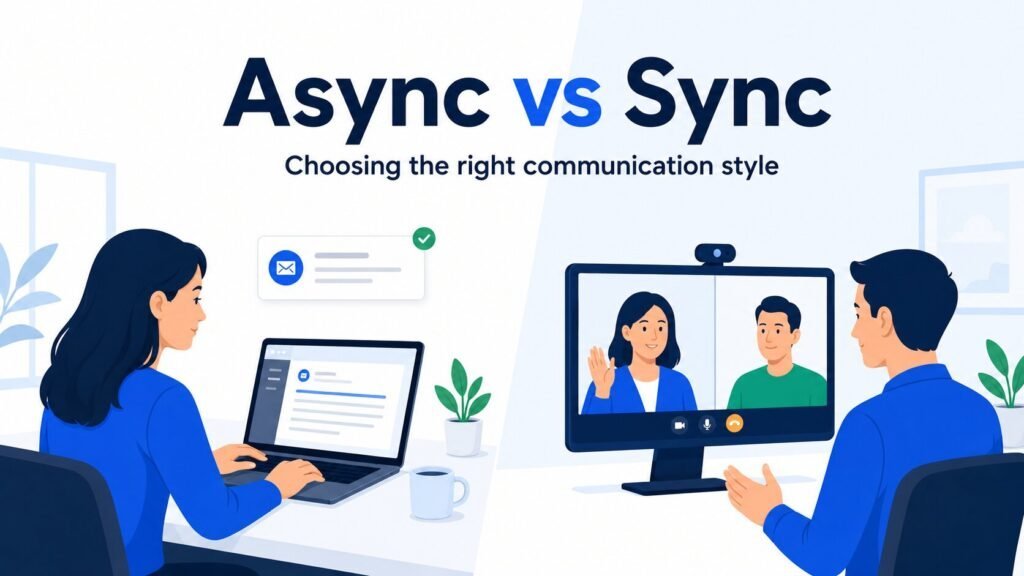
One person expects cameras on throughout the call. Another thinks keeping video off is perfectly reasonable when you’re mostly listening. Some teams prefer questions in chat, while others find it distracting when a second conversation develops alongside the meeting.
There isn’t one set of rules that works equally well for every situation.
Good virtual meeting etiquette depends partly on the meeting itself and partly on how your choices affect everyone taking part. A few thoughtful habits can make a conversation easier to follow without turning an ordinary video call into something overly formal.
Before You Join: Prepare for the Meeting That Matters
You don’t need the same preparation for a weekly team catch-up as you would for a client presentation. But you should have some idea of why you’re attending and what you might need to contribute.
If a project review is meant to resolve two outstanding issues, look at those issues beforehand. You may only need five minutes to check the latest document and prepare a question.
If you’re hosting, make the purpose clear when inviting people. A calendar event labeled Project Update doesn’t tell anyone much. Something like Review launch risks and agree on the remaining actions gives people a better reason to prepare.
Check the Essentials Without Overpreparing
For a routine call, preparation might take less than a minute. Before a client meeting or presentation, give yourself a little more time.
Plan to join at the scheduled time. If you’re using an unfamiliar meeting platform or presenting something important, opening the link a few minutes early can help you catch technical problems before everyone is waiting.
Think about your appearance in the context of the meeting, too. A regular team catch-up may be fairly informal, while a client presentation or interview might call for something more polished. Follow your workplace’s expectations without feeling that every video call requires formal clothing.
Check that:
- Your microphone and speakers are working, especially if you’ve changed devices.
- The meeting link opens with the account you intend to use.
- Any document or presentation you need is ready.
- Private messages and unrelated information won’t appear if you share your screen.
- Your surroundings are reasonably quiet, or you have a way to manage background noise.
A normal home or office background is fine. You don’t need to make your workspace look like a studio.
You also can’t control every interruption. A delivery arrives, someone enters the room, or construction starts outside. If it happens, deal with it briefly and return to the conversation.
Use Your Microphone and Camera With Judgment
Microphone etiquette is mostly about making it easy for people to hear whoever is speaking.
In a large meeting, or when there’s noise around you, muting while you listen is considerate. It prevents background conversations, keyboard sounds, and other interruptions from competing with the speaker.
A quiet one-to-one conversation is different. Constantly muting and unmuting can make an ordinary discussion feel awkward, particularly when people are exchanging short comments.
Use mute when it helps. Before contributing, check that you’re unmuted so the beginning of your sentence isn’t lost.
Camera Etiquette Isn’t One Rule for Every Meeting
Keeping your camera on can be helpful when facial expressions and other visual cues matter. A small collaborative discussion, interview, or client conversation may benefit from seeing each other.
But an hour-long presentation where you’re mostly listening doesn’t necessarily require everyone to remain visible.
There are other reasonable considerations too. An unstable connection, privacy concerns, accessibility needs, or a shared workspace may make video uncomfortable or impractical.
Turning your camera off isn’t automatically disrespectful. At the same time, switching it off without explanation during a conversation where your participation is expected could leave people unsure if you’re still involved.
Follow clearly communicated workplace expectations when they’re appropriate, and use some judgment about the meeting itself.
If your connection is struggling, a brief message such as My connection is unstable, so I’m turning off video to keep the audio clear is more useful than silently disappearing from view.
Being prepared, listening, and contributing appropriately tell people more about your professionalism than keeping your camera on for every minute of the call.
Make It Easier for Everyone to Participate
One of the awkward parts of online meetings is knowing when to speak.
In person, you can often tell when someone is about to finish a thought. On video calls, small audio delays and limited visual cues can make that harder.
If you start speaking at the same time as someone else, there’s no need for a long apology. Stop, let them finish, and return to your point.
For larger meetings, use the raise-hand feature or chat when that’s how the host is managing contributions. In a small discussion, waiting for a natural pause may work better.
If you’re hosting, don’t rely entirely on whoever speaks first. Someone may be trying to contribute but struggling to find an opening.
A short pause after a question gives people time to respond. You can also invite input from someone whose work is directly affected by the decision, without putting every quiet participant on the spot.
Use Chat Without Creating Another Conversation
Meeting chat is useful for sharing a link, asking a short question, or adding a detail that doesn’t need to interrupt the speaker.
It becomes less helpful when several people start resolving an important issue in chat while everyone else is following the spoken discussion.
If a chat message changes the direction of the meeting, bring it into the shared conversation.
For example, if someone posts that the proposed deadline conflicts with another team’s release, the host can acknowledge it and give the group a chance to reconsider.
Not everyone watches chat constantly, especially when they’re presenting or using a smaller screen.
Give the Meeting Enough Attention
It’s tempting to answer an email while someone else is speaking, particularly when you’re not involved in that part of the discussion.
The risk is that the conversation moves on and you miss something that affects your work. By the time someone asks for your input, you may need the last few minutes explained again.
If you’re expected to contribute, give the meeting enough attention to understand what people are deciding.
But if you regularly spend meetings doing other work because nothing requires your involvement, the problem may be the number or purpose of those meetings. That’s a different issue from etiquette, and one worth addressing through better meeting management.
Share Screens and Information Carefully
Screen sharing should make something easier to understand. Sometimes it does the opposite.
Someone opens a spreadsheet with dozens of columns, begins discussing a figure in the far corner, and assumes everyone can see what they’re referring to.
Before sharing, open the material you need and close unrelated windows. When possible, share a specific application or window rather than your entire desktop. Check the preview so you know what participants will see.
Once you’re sharing, help people find the relevant information.
You might say:
I’m looking at the second table, under Project Costs. The number we need to check is the revised estimate in the final column.
That gives people a reference point instead of forcing them to search the screen while listening.
If the text is difficult to read, increase the zoom or share the document directly. Don’t assume that because something looks clear on your monitor, it’s readable on a laptop or phone.
Stop sharing when the visual is no longer needed.
Make the Material Accessible, Not Just Visible
Seeing a shared screen and being able to use the information on it aren’t the same thing.
Someone using a screen reader, for example, may not be able to access the contents of a document through an ordinary screen-sharing view.
When people need to review a document, provide an accessible copy or link rather than relying on the shared screen alone.
For presentations and discussions, other useful practices include:
- Making appropriate captions or other communication support available when needed.
- Describing important information shown in charts, diagrams, or images.
- Allowing enough time to read material before moving on.
- Providing another way to contribute if a participant cannot use a particular meeting feature.
The W3C’s guidance on accessible remote meetings addresses these concerns, including the importance of accessible materials and participation options.
Automated captions can be helpful, but they aren’t always accurate, particularly with names, technical terms, or poor audio. If accurate captions or another accommodation is needed, turning on an automatic feature may not be sufficient.
You don’t have to guess every participant’s needs. But when you’re hosting, it’s reasonable to ask about access requirements beforehand and make appropriate arrangements rather than waiting until someone is excluded from the discussion.
When the Meeting Doesn’t Go as Planned
Even a well-prepared virtual meeting can run into problems.
Your connection drops. Someone joins late. Two people misunderstand each other because part of a sentence was lost.
Good etiquette doesn’t require pretending these things never happen. It means dealing with them without making the situation unnecessarily difficult for everyone else.
If You Join Late
Join quietly if the meeting is already underway.
If the discussion is flowing, you probably don’t need to interrupt everyone with an explanation. A brief apology can be appropriate when you have an opening, particularly if people were waiting for you.
Check any available agenda or meeting chat to understand what’s happening.
If you’ve missed something essential, ask for the particular information you need at a suitable moment rather than requesting a full recap while everyone waits.
There are exceptions. If you’re the person presenting or responsible for a decision, acknowledge the delay promptly so the group can adjust.
If Your Audio or Connection Fails
If someone tells you your audio is difficult to hear, repeating the same sentence at the same volume probably won’t help.
Check which microphone is selected, move somewhere quieter if you can, or reconnect your audio. If the connection is struggling, turning off video may help keep the conversation going.
If you can still use chat, let the host know what’s happening.
Example message
My audio keeps dropping. I’ll reconnect and rejoin shortly. Please continue with the next item.
If the meeting platform offers an approved phone dial-in option, that may be easier than repeatedly reconnecting through a weak internet connection.
When a technical problem prevents someone essential from participating, the host may need to pause that decision, use another accessible communication method, or reschedule the relevant discussion.
Forcing a decision through while a necessary participant can’t hear or respond isn’t an improvement over a short delay.
If People Keep Talking Over Each Other
This is usually easier to fix with a little structure than with repeated reminders to stop interrupting.
If you’re hosting, pause the discussion and give the speakers a clear order.
You could say:
I think we’re losing part of the discussion. Let’s hear the concern about the budget first, then come back to the timeline.
There’s no need to make an ordinary overlap embarrassing.
If the conversation becomes difficult because several people are discussing different issues, separate those issues before continuing.
A small amount of structure can help the conversation recover without turning the entire meeting into a formal procedure.
Recording and AI Notes: Be Clear About What’s Captured
Recording a meeting can help people revisit important details, particularly when the discussion is technical or someone cannot attend. AI note-taking tools can also create summaries and suggested action items.
But a recording or generated summary changes more than the way people remember the meeting. It creates information that may be stored, shared, or accessed later. People should know when a meeting is being recorded, transcribed, or processed by an AI note-taking feature.
If you’re hosting, explain what’s being used and why, especially when the meeting includes clients, external participants, or sensitive topics. Check your organization’s policies and any applicable consent or privacy requirements before enabling the feature.
Don’t assume that a platform notification settles every question about permission.
For example, Google Meet’s AI note-taking guidance explains participant notices, sharing controls, and settings that organizations may use to require explicit consent for certain meeting features.
Before sharing the resulting notes or recording, check who will have access. Some sharing settings may include external guests or people who were invited but didn’t attend. Make sure the recipients are appropriate and that the information is stored or shared through an approved location rather than relying on the default settings.
If a discussion moves into confidential information that shouldn’t be captured, follow the appropriate process for pausing or stopping the feature, or changing how the discussion is handled.
Check AI Notes Before Treating Them as Decisions
An automated summary might identify a possible action as a firm commitment or leave out an important qualification.
Suppose two colleagues discuss a Friday deadline but agree that it’s only feasible if the client sends the missing information by Wednesday. A summary that records only Deadline: Friday could misrepresent the decision.
Someone responsible for the meeting should review important dates, names, commitments, and unresolved issues before sharing the notes as an authoritative record.
AI notes can save time, but someone still needs to check the details before the team relies on them.
Hybrid Meetings: Don’t Leave Remote Colleagues Out
A hybrid meeting can look inclusive because everyone has a meeting link. That doesn’t mean everyone has the same opportunity to participate.
People sitting together in a conference room can see gestures, hear quieter comments, and look at a physical whiteboard. Someone joining remotely may have access to only part of that information.
This is where the host needs to pay particular attention.
When the Room Has Information Others Can’t See
Imagine five people reviewing a project proposal. Three are in a conference room, and two have joined online.
During the discussion, someone walks to the whiteboard and sketches a revised project timeline. The people in the room can see where the dates have moved. The remote participants see a wide camera view with writing too small to read.
A colleague in the room points to the final milestone and suggests moving it by a week. Two others agree.
From the remote participants’ perspective, the proposal has changed, but they haven’t been able to examine it.
The host should stop the discussion long enough to make the information available.
That might mean transferring the timeline into a shared document, showing an accessible digital version, or clearly describing the proposed changes while arranging access to the material.
Then the remote colleagues need a chance to respond before the decision is settled.
Simply asking Any objections? while displaying an unreadable whiteboard doesn’t give everyone a fair opportunity to contribute.
Bring Side Conversations Back Into the Meeting
People in the same room may exchange a quick comment or answer a question away from the microphone.
That’s normal until the comment affects the discussion.
If someone in the room explains a concern that remote colleagues couldn’t hear, repeat or summarize it for everyone before moving on.
The same applies to spontaneous decisions made during a side conversation.
Remote participants shouldn’t have to interrupt repeatedly to find out what the room has agreed to.
It helps to use microphones that capture the speakers clearly, watch for raised hands and chat messages, and pause long enough for remote participants to unmute and contribute.
If someone keeps getting missed, adjust how the meeting is being run. The responsibility shouldn’t fall entirely on the person joining online to fight for an opening.
End With Decisions People Can Use
A meeting can feel productive while it’s happening and still leave everyone uncertain afterward.
The discussion was useful. Several ideas were considered. People agreed that something needed to change.
But who is actually doing what?
Before ending a meeting that requires action, confirm the decisions and responsibilities while people are still there to correct misunderstandings.
For example, if a team decides to revise a client proposal, the closing discussion could establish:
- Decision: Use the revised cost estimate in the proposal.
- Owner: Jordan will update the pricing section.
- Deadline: Wednesday at 3 PM ET.
- Unresolved item: The client still needs to confirm the delivery schedule.
This doesn’t need to become a lengthy meeting summary.
A short written follow-up can be enough, especially when people need to refer to the outcome later. If the team already uses a project tracker or shared document, update that rather than creating another disconnected record.
When a meeting ends without a decision, be clear about that too. Perhaps the team needs more information before committing. Record what is missing and who will obtain it.
Some meetings are simply conversations or brief updates. If nothing changed and no follow-up is needed, there’s no reason to manufacture action items.
People should leave knowing where things stand, even when the next step is to wait for more information.